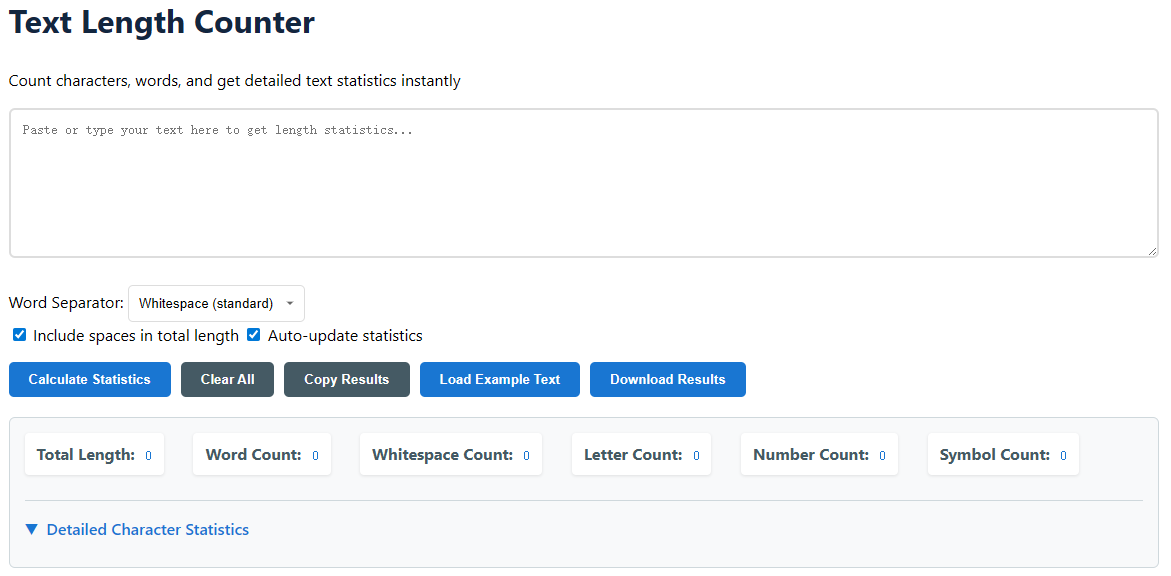
Text Length Counter

Count characters, words, and get detailed text statistics instantly

Total Length: 0
Word Count: 0
Whitespace Count: 0
Letter Count: 0
Number Count: 0
Symbol Count: 0
Detailed Character Statistics

Master Your Text with the Ultimate Text Length Counter

In the digital age, where communication is often bound by character limits and content is optimized for engagement, knowing the precise length of your text is more than a convenience—it's a necessity. Our Text Length Counter is a sophisticated, free online tool designed to provide instant, detailed statistics on any text you provide. It goes far beyond a simple word counter, offering a granular breakdown of characters, letters, numbers, symbols, and whitespace. Whether you're a writer crafting the perfect tweet, a student adhering to an essay word limit, a developer validating input fields, or a marketer optimizing SEO meta descriptions, this tool delivers the critical data you need in a clear, actionable format. By understanding the exact composition of your text, you gain greater control over your writing, ensuring it meets technical requirements and resonates with your intended audience.

How to Use the Text Length Counter: A Step-by-Step Guide

Getting detailed text statistics is a straightforward process. Follow this guide to leverage the full power of the tool, from basic counting to advanced data export. The interface is designed for intuitive use, but these steps will ensure you utilize every feature effectively to suit your specific needs.

  1. Input Your Text
  2. Configure Your Count Settings
    • Word Separator: Select "Whitespace" for standard word counting (e.g., "well-known" is one word). Choose "Whitespace & punctuation" to split at hyphens, periods, etc. (e.g., "well-known" counts as two words: "well" and "known").
    • Include Spaces: Check this box if spaces should be part of the "Total Length" (common for social media character limits). Uncheck it to count only visible characters (common for certain publishing guidelines).
    • Auto-update: Leave this checked for instant, real-time statistics as you type or paste. For very long texts, uncheck it and use the "Calculate" button to prevent browser lag.
  3. Review & Analyze the Results
    • Examine the primary metrics: Total Length, Word Count, and Whitespace Count.
    • Dive into the character composition: see how many characters are letters, numbers, or symbols.
    • Click "▼ Detailed Character Statistics" to open a grid showing the exact frequency of every character used (e.g., 'e': 12, 'a': 5). This is perfect for text analysis.
    • The statistics update automatically if "Auto-update" is enabled, or immediately after clicking "Calculate Statistics".
  4. Utilize the Action Toolbar
  5. Export or Reset Your Data
    • Copy Results: Instantly copies a formatted summary of all statistics to your clipboard for pasting into reports or documents.
    • Download Results: Generates and downloads a `.txt` file containing all statistical data, including the detailed character frequency table.
    • Load Example: Populates the text area with sample text to demonstrate the tool's capabilities without typing.
    • Clear All: Resets the text area, all statistics to zero, and closes any open panels for a fresh start.

Practical Example: Analyzing a Product Description

Introducing the NovaBlend 5000: The ultimate smart blender with 5-speed settings (up to 25,000 RPM) and a 1.5L BPA-free jug. #KitchenTech

  • Total Length (with spaces): 124 characters. Crucial for fitting into an Amazon bullet point or product card.
  • Word Count (Whitespace & punctuation): 18 words. Helps assess readability and scannability.
  • Letter Count: 92 letters. Shows the density of alphabetic content.
  • Number Count: 7 numerals. Highlights product specifications ("5000", "5", "25,000", "1.5").
  • Symbol Count: 9 symbols (including colons, parentheses, hyphen, and the hashtag). Important for understanding formatting.
  • Detailed Stats: Would show a high frequency of the letter 'e', and single counts for symbols like '#', useful for consistency checks.

Understanding the Tool's Logic and Core Applications

This tool isn't just a simple counter; it's built on defined computational logic to ensure accuracy and flexibility. Understanding what happens behind the scenes helps you interpret the results correctly and apply them to real-world scenarios across various professions and hobbies.

How the Counting Algorithms Work

  • Total Length: The most fundamental count. It calculates the total number of characters in the input string. When "Include spaces" is checked, every space, tab, and newline character is counted. When unchecked, these whitespace characters are filtered out before the final tally.
  • Word Count Logic:
    • Whitespace Mode: The text is split into an array using regular expressions that match any sequence of whitespace characters (spaces, tabs, newlines). Consecutive spaces do not create empty words.
    • Whitespace & Punctuation Mode: The text is split using a pattern that matches any non-alphanumeric character (including spaces). This treats hyphenated compounds, decimal points, and hashtags as word separators, often providing a count closer to linguistic units.
  • Character Categorization: Each character in the text is classified using Unicode character categories. Letters (a-z, A-Z) are identified, numbers (0-9) are counted separately, and any character that is not a letter, number, or whitespace is classified as a symbol (e.g., @, !, ., ;).
  • Whitespace Count: A dedicated count of all space, tab, and newline characters, independent of the "Include spaces" setting. This helps analyze text formatting density.
  • Detailed Character Statistics: The tool creates a frequency map by iterating through every character. It counts how many times each unique character appears, then displays this data sorted, often by frequency or character code.
  • Result Generation: All calculations are performed client-side in your browser using JavaScript. This ensures speed, privacy (your text never leaves your computer), and offline functionality once the page is loaded.

Who Benefits from This Tool? Key Use Cases

From professionals to students, the applications for a detailed text length counter are vast and varied.

  • Writers & Content Creators: Adhere to strict editorial word counts, optimize social media posts for platform limits (Twitter/X, Instagram, LinkedIn), and craft compelling meta titles and descriptions under 60 and 160 characters respectively for SEO.
  • Students & Academics: Ensure essays, theses, and abstracts comply with stringent word or character limits set by institutions or journals. Analyze text composition for linguistics or literature projects.
  • Developers & Programmers: Validate user input length for database fields, API calls, or form submissions. Analyze log files or code for character frequency (useful in basic cryptography or data cleaning).
  • Marketers & SEO Specialists: Fine-tune pay-per-click (PPC) ad copy to fit display limits, optimize product descriptions for e-commerce platforms, and ensure content marketing pieces meet brief specifications.
  • Translators & Linguists: Compare the length and character density of source and translated texts, which can impact layout and design in multilingual publications.

Frequently Asked Questions (FAQ)

Have questions about the Text Length Counter's functionality or results? This FAQ section addresses the most common inquiries to help you use the tool with confidence and understand its output.

What's the difference between "Total Length" and "Letter Count"?

"Total Length" is the count of all characters in your text, which can include letters, numbers, symbols, punctuation, spaces, tabs, and line breaks. "Letter Count" is a subset of this total; it counts only the alphabetic characters (A-Z and a-z). For example, in the text "Hello, World 2024!", the Total Length is 19 characters, while the Letter Count is only 10 (H,e,l,l,o,W,o,r,l,d).

  • Total Length: The comprehensive size of your text.
  • Letter Count: The number of alphabetic building blocks within that text.
  • Use Total Length for technical limits; use Letter Count for linguistic analysis.

Which "Word Separator" setting should I use?

Choose based on your definition of a "word":

Does the tool count emojis and special Unicode characters?

Yes, it does. Emojis and complex Unicode characters (like ©, ö, or 字) are typically counted as a single character in the "Total Length." However, they are categorized as "Symbols" in the character breakdown, as they are not standard Latin letters or numbers. The "Detailed Character Statistics" panel will show each unique emoji and its count.

Is my text safe? Is it stored or sent to a server?

Your privacy and data security are paramount. This tool operates entirely within your web browser (client-side). The JavaScript code processes your text locally on your device. The text you input is never transmitted to, stored on, or processed by any external server. You can even use it safely in offline mode after the initial page load.

Pro Tips and Best Practices for Accurate Text Analysis

To get the most reliable and useful results from your text analysis, consider these expert tips and best practices. They will help you avoid common pitfalls and ensure your counts align perfectly with your specific goals and platform requirements.

Always Check the Platform's Specific Rules

Different platforms have different counting algorithms. For instance, some may count URLs as a fixed number of characters regardless of length, while others count each character. Use this tool as a highly accurate baseline, but always test directly on the target platform (like pasting a draft into Twitter/X's composer) for the final check, as their internal logic may vary slightly.

Use "Auto-update" Wisely for Large Texts

While the auto-update feature is fantastic for real-time feedback, pasting or typing an extremely large document (like a full novel chapter) with it enabled may cause temporary slowdowns in your browser. For texts over 10,000 characters, we recommend unchecking "Auto-update," pasting your text, and then clicking the "Calculate Statistics" button manually for a smooth experience.

Leverage Detailed Stats for Data Cleaning

The "Detailed Character Statistics" panel is a powerful tool for data analysts and programmers. If you're cleaning a dataset, you can quickly identify unwanted or "invisible" characters (like non-breaking spaces, tabs, or special control characters) by their high or unexpected counts and then target them for removal.

Compare Modes for Linguistic Insight

Try analyzing the same text with both "Word Separator" settings. The difference in word count can reveal interesting things about your writing style, such as your reliance on hyphenated compounds or complex punctuation. A larger gap might indicate a more technical or formal writing style.

Download Results for Audits and Records

If you're using the tool for professional work, such as verifying client content meets a contract's word count or auditing SEO metadata, use the "Download Results" feature. This creates a time-stamped, verifiable record of the analysis that you can archive alongside the delivered work.